


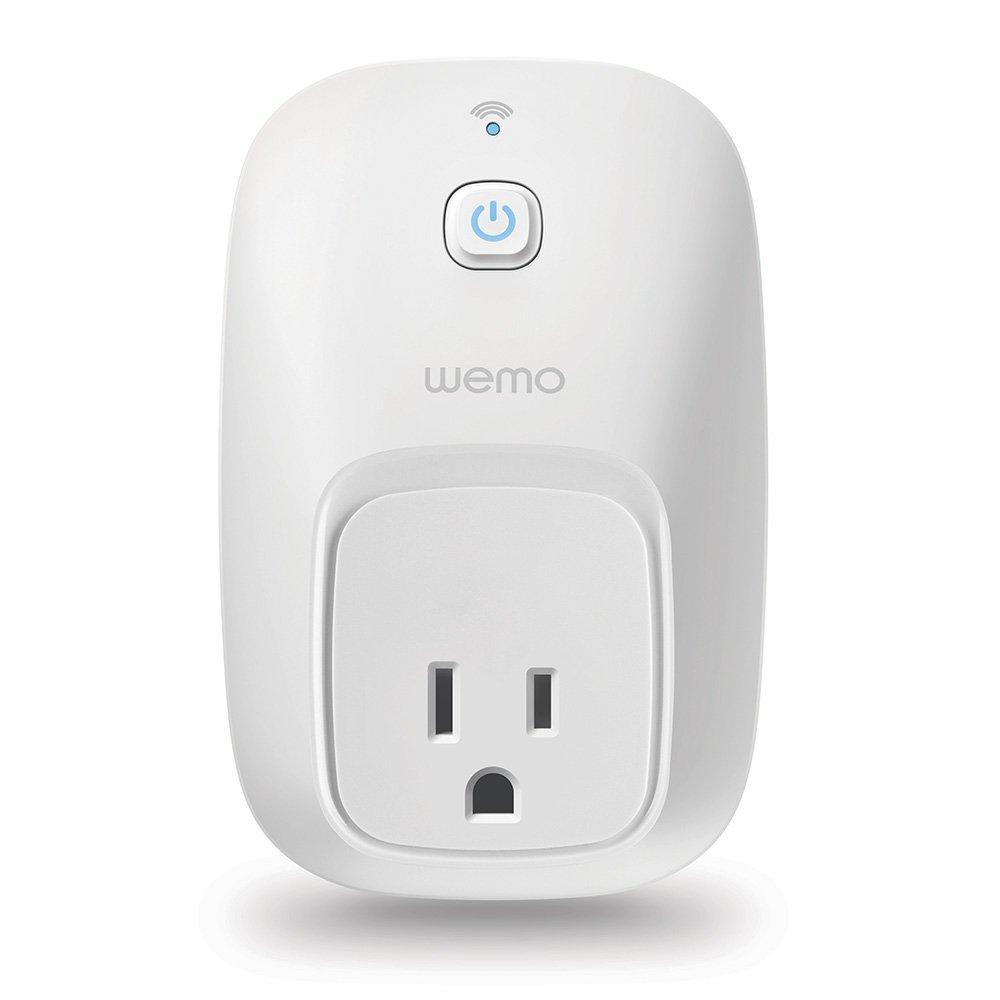


Seamless install (with a learning curve), and I am thrilled; works exactly as I hoped.
I bought three of these recently, and I'm very satisfied. Important advice: do not be in a hurry when you install your first smart switch, because there is a small learning curve, and you'll probably thrash around a bit. Thankfully, I had read the reviews here on Amazon, so I knew to expect the setup to be a little bit trying. But after I learned what to do, it was seamless. When you get your switch, just plug it in to a wall outlet within range of your wireless network, and also plug a lamp into it (for testing). Next, connect your smartphone's wifi to the switch's "temporary" network, which will be called Wemo.Switch.XXX (where XXX are the last 3 digits of the serial number) instead of to your local area network. Then open the Belkin Wemo App on your smartphone (Android 4.0 or later, or iPhone) while connected to the temporary network. The very first time you connect to one of these temporary networks, it will ask you to help the switch get onto your local area network (LAN), so at that time, you need to type in the name of your LAN (called SSID in the documentation) and its password. If you buy 50 switches, you'll only need to do this once, because Belkin will then store the information in the cloud for any future switches in your house to use. After that, the Belkin Wemo App should switch back to your regular LAN, and then should open a screen when you can name the switch--use the name that describes the device you'll be switching (I named mine Bird Lights, Green Up Light, and Red Up Light, for example). Once that's done, you can (if you wish) create rules for the switch, in case you want to use it as a timer, for example. Also, once this is done, if you have an Amazon Echo device, just say "Alexa, discover Belkin Wemo devices", and it should find them within a reasonably short time (perhaps minutes, but in my case, only seconds). Once it has found them, you can command the Echo to turn the switches on/off, by saying, for example, "Alexa, turn on Bird Lights" (or whatever your switch is called) or "Alexa, turn off Bird Lights". It's that simple. I didn't have a single issue with any of the three switches once I understood the procedure. Note also that soon after installation, each switch wanted to get a firmware update. This is new software for inside the switch that gets downloaded from the Belkin website. It will ask you (when you connect to the Belkin Wemo App) if the firmware update can proceed, and when you give the go-ahead, the switch may be unreachable for a few minutes while the firmware downloads and the switch reboots. Give it 20 minutes to be sure--everything should be back after that. I had none of the problems (reported just a few weeks ago) with Echo--it found them quickly and turns them either on or off as requested. I also put two devices in a group (using the Belkin Wemo App), and the Echo lets me turn them on/off all at once using the group name. Good product. Worth the staggering $40+ per switch cost for those few devices that have special needs. In my case, that was one set of lights that I wanted to come on at sunrise and off at sunset (the Bird Lights), and without needing an actual light sensor. Also, two lamps that sit in corners where it's difficult to reach their switch. I turn them off later at night to prepare my eyes for bedtime--so the smart switches allow me to turn them off without having to climb over furniture just to reach the physical switches of the lamp. Yay for home automation, Amazon Echo, and Belkin Wemo. Read more


